Advertisements
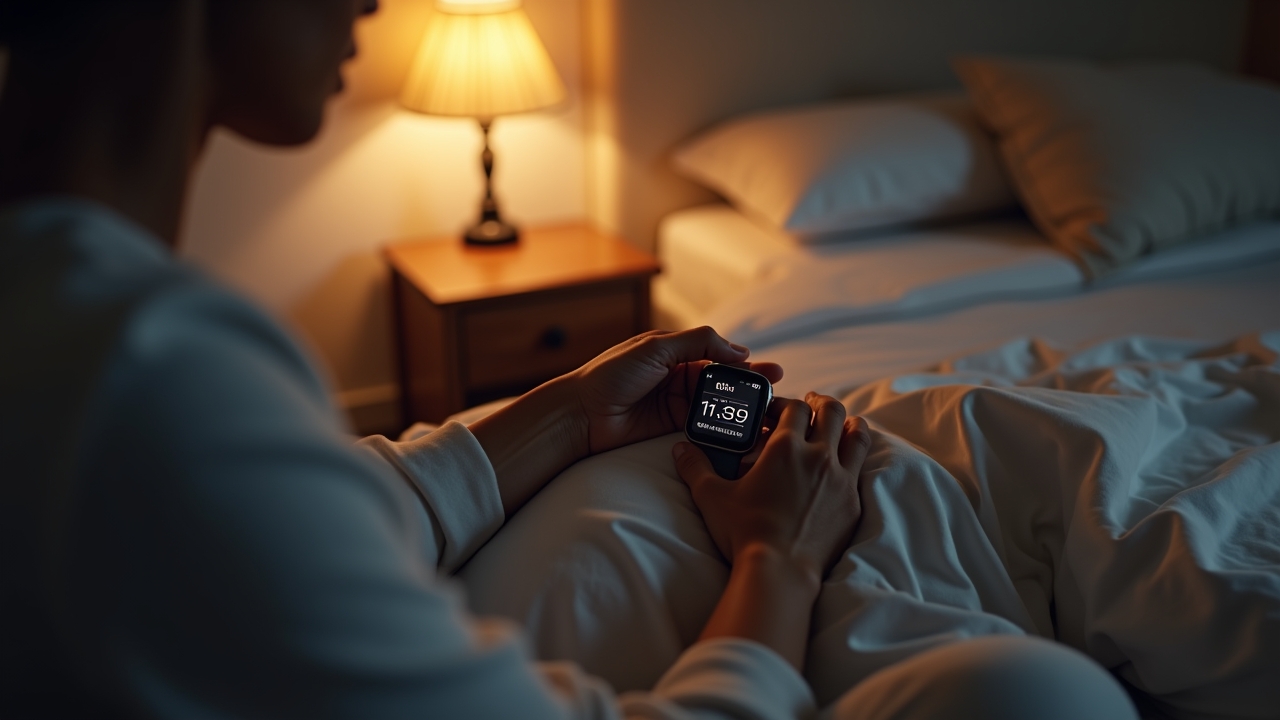
Did you know that roughly 1 in 3 adults don’t get enough sleep? I was definitely one of them. For years, I thought I was sleeping “fine” until I finally set up sleep tracking on my Apple Watch and realized I was waking up like 6 times a night without even knowing it! If you’ve got an Apple Watch sitting on your wrist and you haven’t configured it to track your sleep yet, honestly, you’re missing out on some seriously eye-opening data.
Getting your Apple Watch sleep tracking setup right can genuinely change how you approach your nightly routine. And the best part? It’s not that complicated once someone walks you through it. So let me do exactly that.
What You Need Before Getting Started
First things first — make sure your Apple Watch is running at least watchOS 9 or later. The sleep tracking features got way better with recent updates, especially the sleep stages breakdown. Your iPhone needs to be on iOS 16 or newer too.
I learned this the hard way when I spent twenty minutes poking around settings only to realize my software was outdated. Super frustrating. Just go to Settings > General > Software Update on both devices and save yourself the headache.
Setting Up Your Sleep Schedule on iPhone
Here’s where the magic actually begins. Open the Health app on your iPhone and tap on the Browse tab at the bottom. Then hit Sleep and select Get Started if it’s your first time.
You’ll be asked to set a sleep goal — I’d recommend starting with something realistic like 7 hours rather than the aspirational 9 hours I foolishly chose at first. Nobody needs their watch judging them every single morning. Next, configure your bedtime and wake-up schedule for each day of the week, because let’s be real, weekends are different.
One thing that tripped me up was the Wind Down feature. It basically activates a simplified lock screen before your scheduled bedtime to help you stop doomscrolling. I set mine to 30 minutes before bed and it’s been a game-changer for my sleep hygiene.
Advertisements
Enabling Sleep Tracking Directly on Your Apple Watch
Now grab your watch. Open Settings on the Apple Watch itself, scroll down to Sleep, and make sure Track Sleep with Apple Watch is toggled on. This is the step people forget most often, and then they wonder why there’s no sleep data showing up.
Also, turn on Charging Reminders so your watch nudges you to charge it before bed. Because here’s the thing — if your watch dies at 2 AM, you’re only getting half your sleep data. I usually charge mine while I’m making dinner and getting the kids ready for bed, which gives it plenty of juice to last through the night.
Understanding Your Sleep Data and Stages
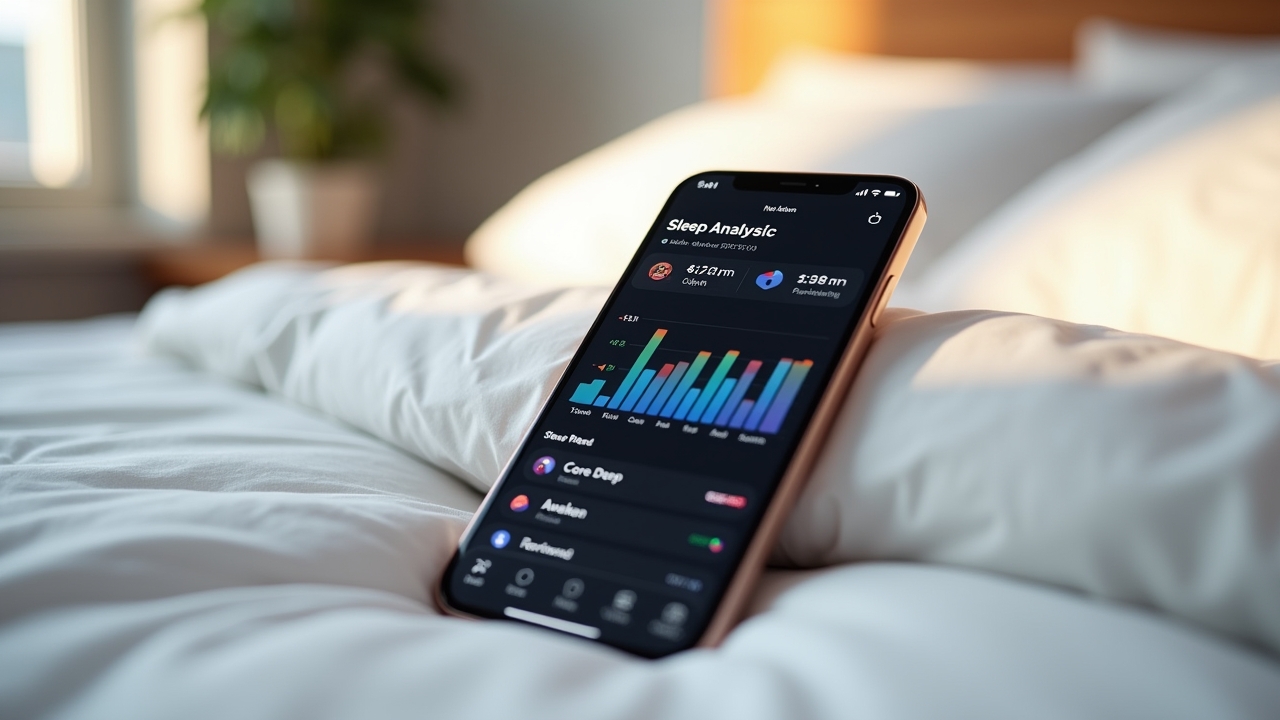
After your first night, open the Health app and check out the Sleep section. You’ll see data broken into REM, Core, and Deep sleep stages, plus time awake. This was honestly the part that blew my mind.
I noticed I was barely getting any deep sleep, which explained why I always felt groggy. After some tweaks — like cutting caffeine after 2 PM and keeping my room cooler — my deep sleep numbers started climbing. The Apple Support page on sleep tracking has more details on what each stage means if you want to nerd out.
Quick Tips That Actually Helped Me Sleep Better
- Wear the watch snug but not tight — a loose fit messes with sensor accuracy.
- Use a Sleep Focus mode to silence notifications automatically.
- Review your weekly trends, not just individual nights.
- Pair it with the respiratory rate tracking for extra health insights.
Your Sleep Journey Starts Tonight
Setting up sleep tracking on your Apple Watch takes maybe ten minutes, but the insights you gain can genuinely improve your quality of life. I went from “I sleep okay, I guess” to actually understanding my body’s patterns, and that knowledge is powerful.
Play around with the settings and make them work for your schedule — there’s no one-size-fits-all here. And remember, the data is meant to help you, not stress you out. If you found this helpful and want more tips on getting better rest, check out more posts over at Sleepora Lab — we’re kind of obsessed with helping people sleep smarter!